
Want to change note pitch via CC in Ableton Live depending on where you hit a drum controller? This guide walks you through exactly how to do it using the CC To Note Pitch Layers Pack V2 — a set of Max for Live devices that turn incoming MIDI CC values into dynamic pitch selection in real time.

Whether you play a drumbeam, an Erae Touch, or any MIDI controller that sends positional CC data, this technique opens up a whole new world of expressive, experimental performance inside Ableton Live.
What You Need Before You Start
Before diving in, make sure you have the following ready:
- Ableton Live with Max for Live (included in Live Suite, or available as an add-on for Live Standard)
- The CC To Note Pitch Layers Pack V2
- A MIDI controller that sends both MIDI notes and MIDI CC values — such as a drumbeam by afk Audio or the Erae Touch.
Understanding How CC-to-Pitch Control Works in Ableton
The core concept is straightforward: your drum controller sends two types of MIDI data simultaneously — a MIDI note and a MIDI CC value (ranging from 0 to 127). The CC value reflects the position of your hit on the controller.
The CC To Note Pitch Layers Pack V2 reads that CC value and maps it to a specific pitch layer. In other words, where you hit on the surface determines which note pitch triggers. This is exactly how you change note pitch via CC in Ableton Live in a fluid, performance-driven way — no automation lanes, no mouse interaction required.
Step 1: Clean Up Your MIDI Routing
First and foremost, make sure your MIDI routing is clean. A messy MIDI setup is one of the most common causes of unexpected behavior when trying to map CC to pitch in Ableton Live.
To set up correctly:
- Go to Preferences → “Link, Tempo MIDI“
- Find your controller (e.g., drum beam) in the Input Ports list
- Make sure it is turned on for “Track”
- On the MIDI track itself, set the MIDI input to your specific controller — avoid leaving it on “All Ins” in a live performance scenario
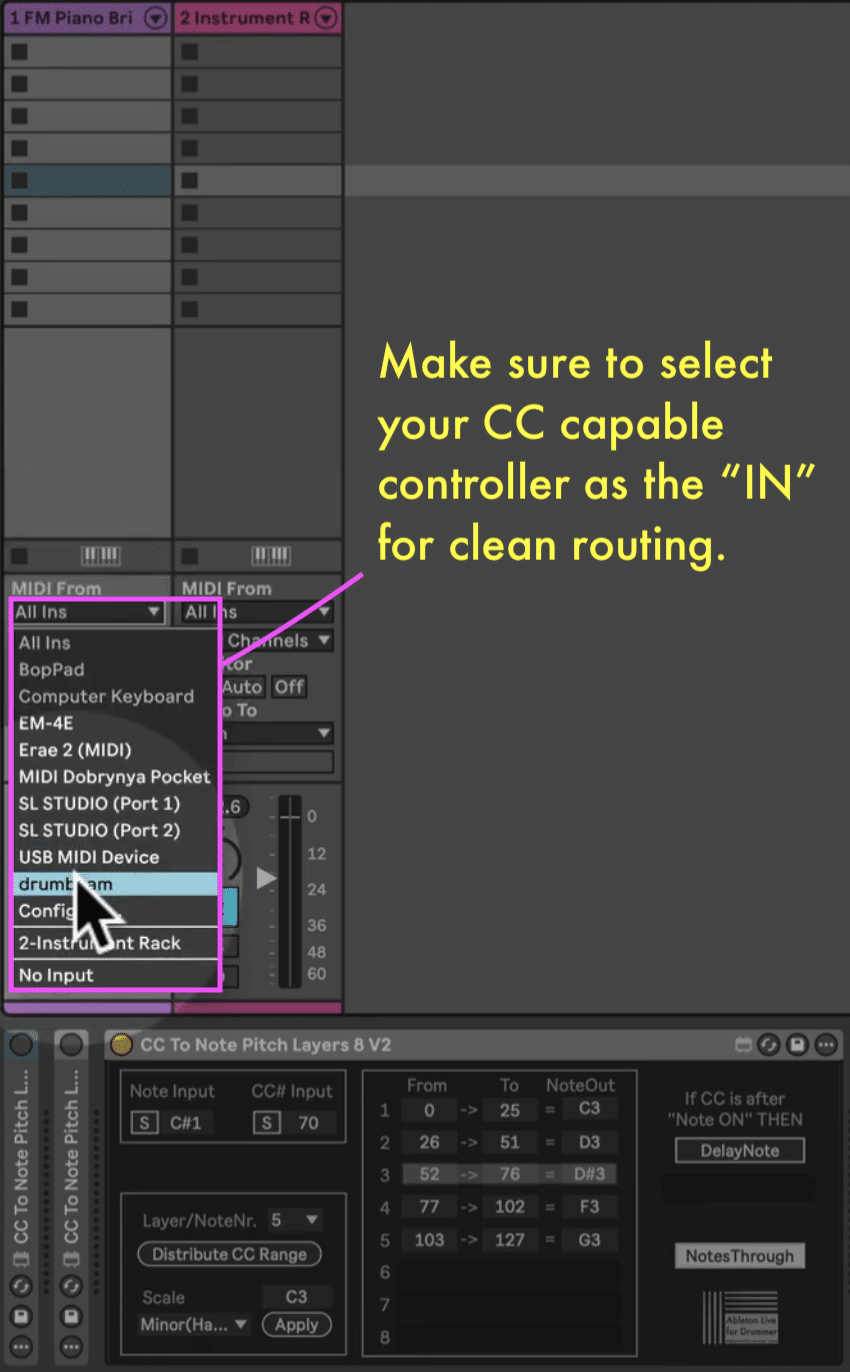
Pro tip: Routing to “All Ins” is fine for testing, but always lock it to the correct device for your final setup to avoid cross-contamination between controllers.
Step 2: Enable CC Output on Your Controller
Next, confirm that your controller is actually sending CC data. For a drum beam, do the following:
- Open the drum beam editor via Wi-Fi in your browser (works on mobile too)
- Select the pad/zone you want to configure
- Make sure Send CC is switched on
- Note the CC number being sent — for example, CC #70
The drum beam and the Erae Touch both send different CC values depending on where on the surface you hit. That positional data is exactly what the CC To Note Pitch Layers Pack V2 uses to change the note pitch accordingly.
To double-check everything is working, use the online MIDI monitor device. You should see both a note message and a CC message arriving — that confirms you are ready to move on.
Step 3: Load the CC To Note Pitch Layers Pack V2 in Ableton
Now load the device onto your MIDI track. The pack comes in three sizes:
- 8-layer version — great for getting started with CC-to-pitch control
- 16-layer version — more note pitch options across the CC range
- 24-layer version — maximum granularity for precise pitch mapping via CC
For this guide, start with the 8-layer device to keep things manageable.
Step 4: Sync the Device to Your Controller
Once the device is loaded, you need to tell it which note and CC number to listen to. Fortunately, this is completely automatic — no manual entry required:
- Press S (Sync) on the device
- The device is now listening — simply hit your controller
- It automatically detects both the note and the CC number

Step 5: Configure Your Note Pitch Layers Across the CC Range
Here is where the real fun begins. With 8 layers active, the full CC range of 0–127 splits evenly across all 8 pitch layers. By default, each layer covers an equal slice:
- Layer 1: CC 0–15 → triggers a specific note pitch
- Layer 2: CC 16–31 → triggers the next note pitch
- And so on up to Layer 8
Rather than configuring each pitch range manually, hit Distribute CC Range to let the device assign equal ranges automatically and cleanly.
Apply a Scale to Your Pitch Layers
To make your CC-to-pitch mapping musically useful, apply a scale preset:
- Select a root note — for example, C2
- Choose a scale type — C Major, Harmonic Minor, etc.
- Hit Apply
The device automatically assigns the correct notes of that scale across your layers. Consequently, hitting lower on the controller triggers root notes via CC, while hitting higher shifts up through the scale pitches — all in real time.
Step 6: Play and Experiment
At this point, you are ready to perform. As you hit different positions on your drum controller, the CC value shifts, and the CC To Note Pitch Layers Pack V2 changes note pitch in Ableton Live accordingly.
Keep in mind that this approach is intentionally experimental and gestural rather than note-precise. Because the CC range maps across the physical surface of your controller, exact melodic playing is not the primary goal. Instead, think of the technique as:
- Triggering root note pitches via CC when you hit the lower area of the surface
- Shifting to higher note pitches as your CC values increase with upward hits
- Blending multiple pitch layers simultaneously for thick, textured sounds and drones
Advanced: Chaining Devices and Using Multiple Controllers
The CC To Note Pitch Layers Pack V2 goes even further when you start chaining devices. A few creative options worth exploring:
- Chain multiple CC To Note Pitch devices on a single track to handle different note ranges and pitch zones independently
- Use a second controller to send CC values while the first controller triggers the notes — both simply need to route their MIDI into the same track to change note pitch via CC together
- Build drone textures, melodic phrases, and experimental soundscapes by combining CC-driven pitch control with Ableton’s built-in instruments and effects
This technique is one of the most direct and expressive ways to add position-sensitive pitch control into your live drumming and performance setup — letting physical movement translate directly into musical pitch changes.
Do not miss the full youtube tutorial for the deep-dive below.



