
Need to change values via MIDI button in Ableton but ran out of dials and knobs on your controller? The UP + DOWN MIDI Control pack provides three Max for Live devices that let you increment and decrement any mappable parameter using simple button presses. This solution proves essential for live performances where you need precise parameter control without available rotary encoders, or when buttons offer more reliable control than knobs.

What You Need to Change Values via MIDI Button
Before you change values via MIDI button in Ableton with increment and decrement control, gather these requirements:
- Ableton Live 10, 11, or 12
- Max for Live (included in Live Suite or available as an add-on for Live Standard)
- The UP + DOWN MIDI Control pack (three devices) from AbletonDrummer.com
- A MIDI controller with momentary buttons that send note-on/note-off or CC messages
The UP + DOWN MIDI Control pack includes three devices for different control scenarios. Consequently, you can change values via MIDI button in Ableton using smooth sliding adjustments or precise stepped increments depending on your needs.
MIDI Controller Requirements
To change values via MIDI button in Ableton successfully, your controller must send proper momentary button messages. Your buttons need to send a value when pressed (note-on or CC value above zero) and send an off value when released (note-off or CC value zero).
This requirement exists because the sliding functionality needs to detect when you release the button to stop adjusting the parameter. Most modern MIDI controllers send momentary button messages by default. However, some controllers offer toggle mode—avoid this mode as it won’t work with these devices.
You are able to check what exact MIDI message your controller is sending via the Online MiDI Monitor here.
Test your controller by pressing a button while monitoring incoming MIDI in Ableton Live. You should see two messages: one when pressing, one when releasing. If you only see one message, your button operates in toggle mode and needs reconfiguration.
Set Up MIDI Routing to Change Values via MIDI Button
First, create a dedicated MIDI track for your UP + DOWN MIDI Control device. Next, select your MIDI controller from the track’s “MIDI From” menu and ensure your controller’s Track input port is activated in Ableton’s MIDI preferences.
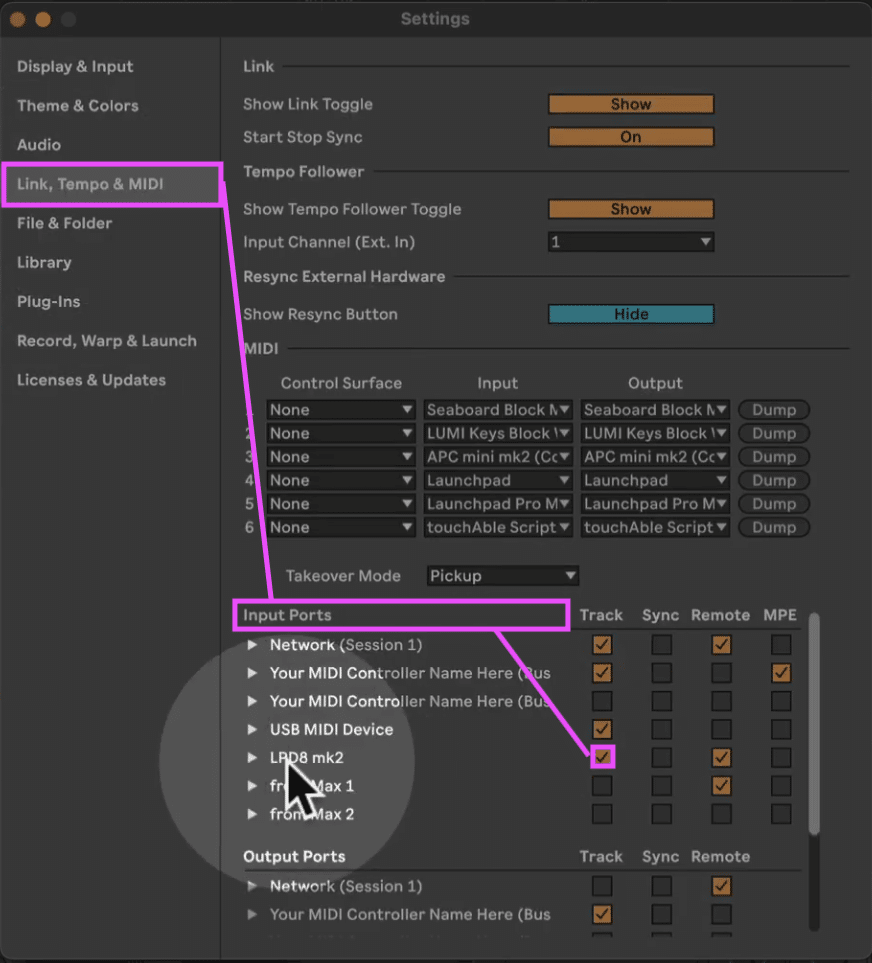
Then set the track’s Monitor to “In” so MIDI continuously passes through to the device. This configuration ensures the device receives your button presses in real time. Drop one of the UP + DOWN MIDI Control devices onto this MIDI track—choose based on whether you want sliding control or stepped increments.

Map Buttons to Change Values via MIDI Button with Sliding Control
The Up and Down Slide MIDI Control device provides smooth parameter changes when you hold buttons. This device works perfectly for volume faders, send levels, or any parameter where you want continuous adjustment.
To set up sliding control:
Activate both the increment and decrement toggles on the device. Click the “S” (sync/learn) button next to the increment control—it starts blinking, waiting for your MIDI message. Press your “up” button on your MIDI controller, and the device automatically detects whether you’re sending MIDI notes or CC messages.

Repeat this process for the decrement control with your “down” button. Now click the “Map” button on the device and select any mappable parameter in Ableton—macro controls, volume faders, pan knobs, effect parameters, or send levels all work perfectly.
Once mapped, press and hold your up button to smoothly increase the parameter value. Press and hold your down button to decrease it. The longer you hold, the more the value changes. Release the button, and the parameter stops exactly where you released it. Consequently, you change values via MIDI button in Ableton with the same precision as using a physical knob.
How to Set Up Increase and Decrease via MIDI Controller Buttons in Ableton Live
The stepped increment/decrement devices work differently from the sliding version. Instead of continuous changes, these devices adjust parameters in defined step sizes—perfect for precise adjustments or when you want predictable value changes.
The Increase Decrease device (the second device in the pack) functions identically to the sliding version but without continuous sliding. Press once for a single step up or down. The step size defaults to one but you can adjust it to larger increments.
To configure stepped control:
Set up your button mapping using the same “S” sync/learn process. Then adjust the increment/decrement step size using the device’s step value control. Setting this to 1 gives you fine control with one unit change per button press. Setting it to 5 or 10 provides faster parameter changes when you need bigger adjustments.
This approach lets you change values via MIDI button in Ableton with exact repeatability. Each button press produces identical parameter changes, making it easy to return to specific values or make consistent adjustments across multiple parameters.
How to Control Faders via MIDI Controller Buttons in Ableton Live
Volume faders represent a perfect use case when you change values via MIDI button in Ableton Live. During live performances, adjusting monitor levels or balancing tracks often requires subtle changes that momentary buttons can provide more reliably than knobs.
Map the Up and Down Slide MIDI Control device to your track volume fader. Now you can increase volume by holding the up button until you reach the desired level, then release for instant stopping. Moreover, the smooth sliding prevents abrupt volume jumps that can occur with stepped controls.
This technique works equally well for send levels, crossfader control, or any continuous parameter where smooth transitions matter. The ability to hold and slide gives you the fine control of a physical fader using just two buttons.
What Parameters Work with UP + DOWN MIDI Control
The UP + DOWN MIDI Control pack works with approximately 90% of Ableton’s parameters because the devices use Ableton’s API. You can change values via MIDI button in Ableton for:
- Instrument parameters: Macro controls, synthesis parameters, sampler settings
- Effect parameters: Mix, feedback, frequency, resonance, time-based parameters
- Mixer parameters: Volume, pan, send levels, crossfader
- Rack controls: All macro controls on audio and MIDI effect racks
- Track parameters: Most track-level settings
- Global parameters: Tempo (surprisingly works with these devices)
A few specialized parameters may not respond to the devices due to API limitations. However, all standard production and performance parameters work perfectly, covering every practical scenario where you need to change values via MIDI button in Ableton. Learn more in the full video tutorial below.
Choose the Right Device from UP + DOWN MIDI Control Pack
The UP + DOWN MIDI Control pack includes three devices for different control needs:
Up and Down Slide MIDI Control: Provides smooth, continuous parameter changes when holding buttons. Best for volume, send levels, and parameters requiring smooth transitions.
Increase Decrease (stepped control): Adjusts parameters in defined step sizes. Perfect for precise, repeatable adjustments or when you want consistent value changes.
Third device variation: (The pack includes three total devices with variations for different workflow preferences)
Get the UP + DOWN MIDI Control Pack for Ableton Live
Download the UP + DOWN MIDI Control pack from AbletonDrummer.com to change values via MIDI button in Ableton with professional flexibility. The pack includes three devices that work across Ableton Live 10, 11, and 12.
The devices require Max for Live, which comes included in Ableton Live Suite or is available as an add-on for Live Standard. Start controlling any mappable parameter with simple button presses, eliminating the need for additional knobs or dials on your MIDI controller.



