
Ableton Live doesn’t give you direct control over how incoming MIDI CC messages translate to parameter movements. Fortunately, the MIDI CC Value Modifier device lets you modify CC values in Ableton by remapping and reshaping how your controller dials and faders affect Live parameters. This means you can create custom response curves, limit ranges, and fine-tune control precisely for your workflow.

What You Need to Modify CC Values in Ableton
Before you modify CC values in Ableton, gather these requirements:
- Ableton Live with Max for Live (included in Live Suite or available as an add-on for Live Standard)
- The MIDI CC Value Modifier device from AbletonDrummer.com
- A MIDI controller with faders, knobs, or dials sending MIDI CC values from 0-127
- A MIDI track to host the device
The MIDI CC Value Modifier transforms standard 0-127 MIDI CC input into custom-shaped output curves. Consequently, you gain precise control over parameter response that Ableton doesn’t natively provide.
Set Up the MIDI CC Value Modifier Device in Ableton
First, load the MIDI CC Value Modifier device onto any MIDI track in your Live set. Next, enable your MIDI controller input in Ableton’s MIDI Preferences under the “Track” column.
Then set your track Monitor to “In” so the device receives incoming CC data from your controller. When properly configured, the device displays a green “in” indicator and yellow indicator dots whenever it detects MIDI messages. This visual feedback confirms your controller communicates correctly with the device.
Learn and Detect Your MIDI CC Numbers in Ableton Live
Now you’ll teach the device which CC number to modify. Enable “Receive MIDI CC” mode on the device, then press the CC-learn button (labeled “S” for “SYNC”). Immediately move the fader or knob on your controller that you want to remap.
This way MIDI CC Value Modifier will auto-detect the MIDI CC number (incoming values range from 0-127, offering 128 steps of resolution).
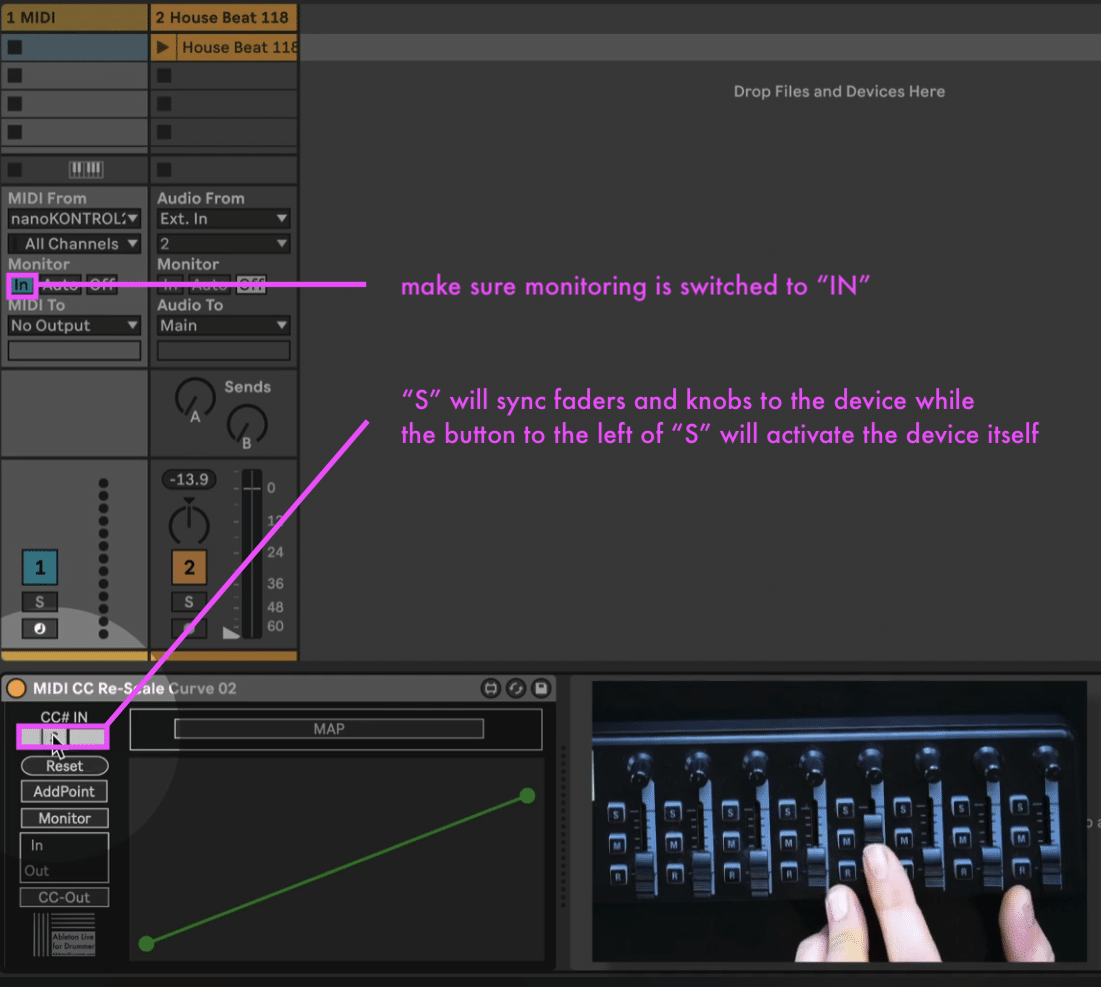
How to monitor modified CC control values in Ableton Live
Additionally, the device displays the input curve as a green line with red dots showing your current input values. This monitoring visualization helps you understand how your controller currently behaves before you modify CC values in Ableton. You can activate and de-activate this visualisation via the “Monitor” button on the center left.
How to Map Modified CC Values to Live Parameters in Ableton
Once the device learns your CC number, you can assign the modified output to a wide number of Ableton parameters. Hit the “Map” button on the device, click the parameter you want to control in Ableton. Parameters like volume fader, filter cutoff, effect send, macros dials in Ableton racks can be mapped.
The MIDI CC Value Modifier binds immediately to your selected parameter. Furthermore, you can remap at any time by pressing “X” to remove the current binding, then repeating the mapping process with a different parameter.
Reshape CC Response with Custom Curves in Ableton
The device’s control graph lets you rescale and reshape CC output beyond standard linear response. Click the endpoint dots to set new output values – for example, set the bottom value to 64 to cap the minimum around the midpoint, preventing your parameter from dropping below halfway.
To create more complex curves, select “Add Point” and click anywhere on the graph to insert control points. Then deselect “Add Point” to avoid accidentally adding unwanted points while adjusting. Make sure to de-activate the “Add Point” function once you finished setting additional points.
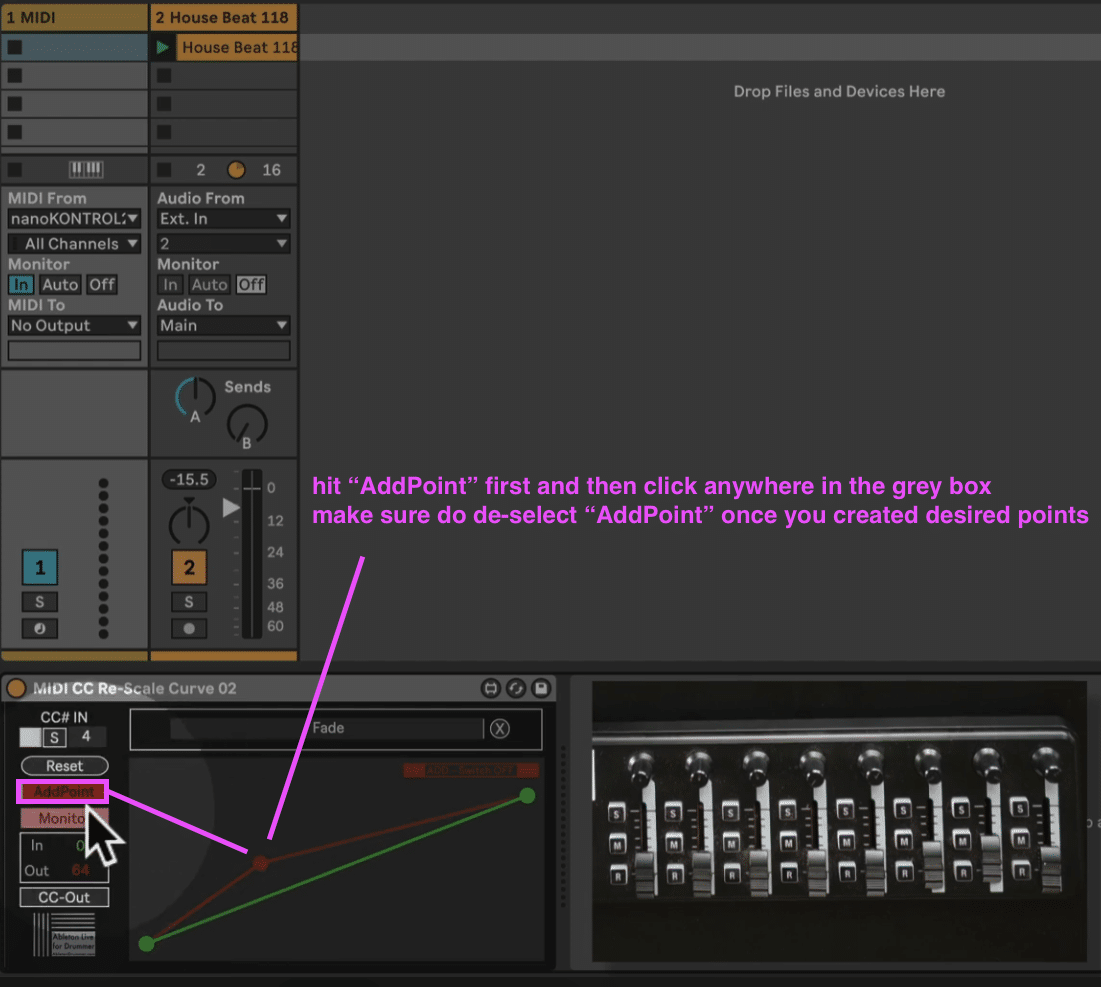
Create smooth curves between points by selecting two adjacent points, holding Option (Alt on Windows), and dragging up or down to shape the curve. This technique allows you to modify CC values in Ableton with exponential, logarithmic, or S-curve responses.
Fine-Tune Parameter Response Zones
Adjust individual control points to speed up or slow down response at specific controller ranges. For instance, you can make your fader move quickly through the first half of its travel, then slow down dramatically in the upper range for fine control.
This approach proves invaluable when you need coarse adjustments at low values but precise control at high values (or vice versa). Moreover, you can create dead zones, acceleration zones, or any custom response pattern your workflow demands.
Send Modified CC to External Hardware
If you want your remapped CC values sent to external synthesizers or hardware, enable “CC Out” on the MIDI CC Value Modifier device. The device transmits the modified CC messages with your new scaling and curves applied. Make sure to route the CC MIDI messages to the right MIDI bus and hardware via selecting it in the “Midi To” menu of this MIDI track the device is placed on.
Consequently, external hardware or plugins receive the transformed values rather than the raw controller input. This feature extends your ability to modify CC values in Ableton beyond Live’s internal parameters to your entire studio setup.
Why the MIDI CC Value Modifier Improves Control for Ableton Live
Standard MIDI CC implementation uses linear scaling from 0-127. However, not all parameters feel natural with linear response. Volume faders often need logarithmic curves to match human perception, while filter cutoffs might benefit from exponential scaling for musical sweeps.
The MIDI CC Value Modifier solves these limitations by letting you modify CC values in Ableton with complete flexibility. You design the exact response curve each parameter needs rather than accepting generic linear mapping.
Get the MIDI CC Value Modifier device from AbletonDrummer.com. The device requires Max for Live (included in Ableton Live Suite or available as an add-on for Live Standard). Once installed, you can modify CC values in Ableton across all your projects with professional-level control customization. Make sure to also check out the full video tutorial for further details.



