
This article shows you how to map your MIDI controller to undo and redo actions in Ableton Live — using a Max for Live device. It’s especially useful for performers, live loopers, and producers who want a more tactile workflow.
One of the most frequent actions in music production is “undo.” Whether you’re editing MIDI clips, tweaking automation, or experimenting with effects, being able to quickly revert changes is essential. In Ableton Live, undo is usually done via keyboard (Cmd + Z / Ctrl + Z). But what if you could trigger it from your MIDI controller?
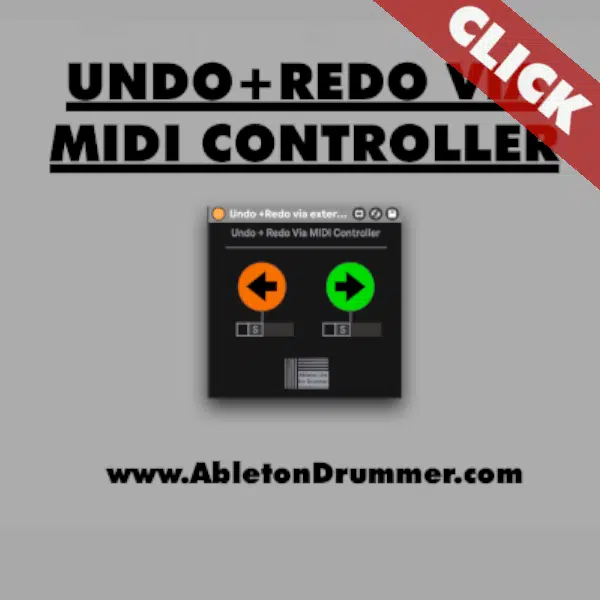
Quick Solution: Use a Max for Live Undo/Redo Device in Ableton
To map MIDI to undo and redo in Ableton, you can use a custom Max for Live device that listens for MIDI input (notes, CC, or program change) and triggers the appropriate function.
Here’s how to set it up:
- Drop the Max for Live device onto a MIDI track in your Ableton project.
- Set your MIDI controller as the input for that track (or use a virtual MIDI loop if needed).
- In the device, choose which MIDI message should trigger “Undo” (e.g., a specific pad or footswitch).
- Optionally, assign another message to “Redo”.
- Enable track monitoring so Ableton receives the MIDI input live.
- That’s it — now pressing your assigned MIDI control will act like
Cmd/Ctrl + ZorShift + Cmd/Ctrl + Z. - Save the Ableton Live set and Re-Open it to make sure the settings of the “REDO+UNDO” won’t be UNDO’d.
As the settings you made in the “Undo+Redo” device in Ableton Live are being added to the “Undo history” you will UNDO its setting in the M4L device and so disabling it. So it is important that you SAVE + RELOAD your Ableton Live set once after you set up the UNDO+REDO device to not unintentionally clear and disable its functionality.
This method keeps everything inside Ableton. No third-party tools, no scripting, just a reliable and musical way to control your workflow.
Check out the video here to understand how to quickly set up your UNDO via a MIDI controller in Ableton Live
Ableton Doesn’t Support MIDI Undo Mapping Natively
Out of the box, Ableton Live does not allow you to assign MIDI controls to undo or redo. The MIDI mapping menu won’t accept this type of shortcut. That’s because undo and redo are seen as application-level commands, not mappable Live parameters.
This limitation leads many users to search for workarounds like:
- Third-party software (e.g., Bome MIDI Translator)
- AutoHotkey scripts
- Custom MIDI Remote Scripts
These can work, but they often require setup outside of Live. A more integrated approach is using Max for Live.
Use Cases for Hands-Free Undo via MIDI Controller
Some common scenarios where Max for Live undo MIDI mapping is helpful:
- Live Looping: Undo the last overdub without touching your keyboard.
- Mix Automation: Quickly undo a knob turn or fader move.
- Sound Design: Experiment freely knowing you can revert from your controller.
Conclusion
If you’ve ever wished you could map undo in Ableton Live to a MIDI controller, now you can — with the help of Max for Live. It’s a practical solution that improves speed and keeps you focused on creativity, not shortcuts.
Whether you’re using a foot pedal, pad controller, or knob box, this method gives you deeper control over your workflow.



